You’ve finally installed your OpenShift platform and now want to make sure everything is working as expected.
In this guide, we’ll deploy a simple web service using the Apache web server and expose it to the internet. By accessing the application from a public web browser, you’ll be able to confirm that your OpenShift cluster is up, running, and correctly handling real workloads. This guide uses the Openshift Web UI platform to achieve all tasks, if you are interested in the CLI version see here
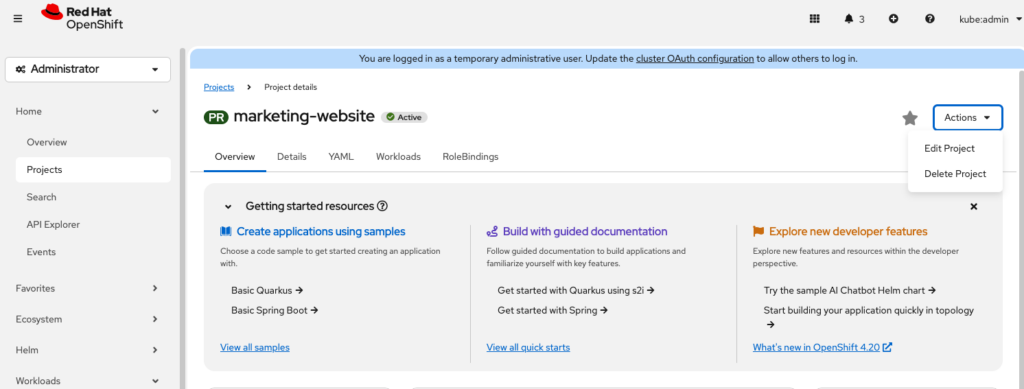
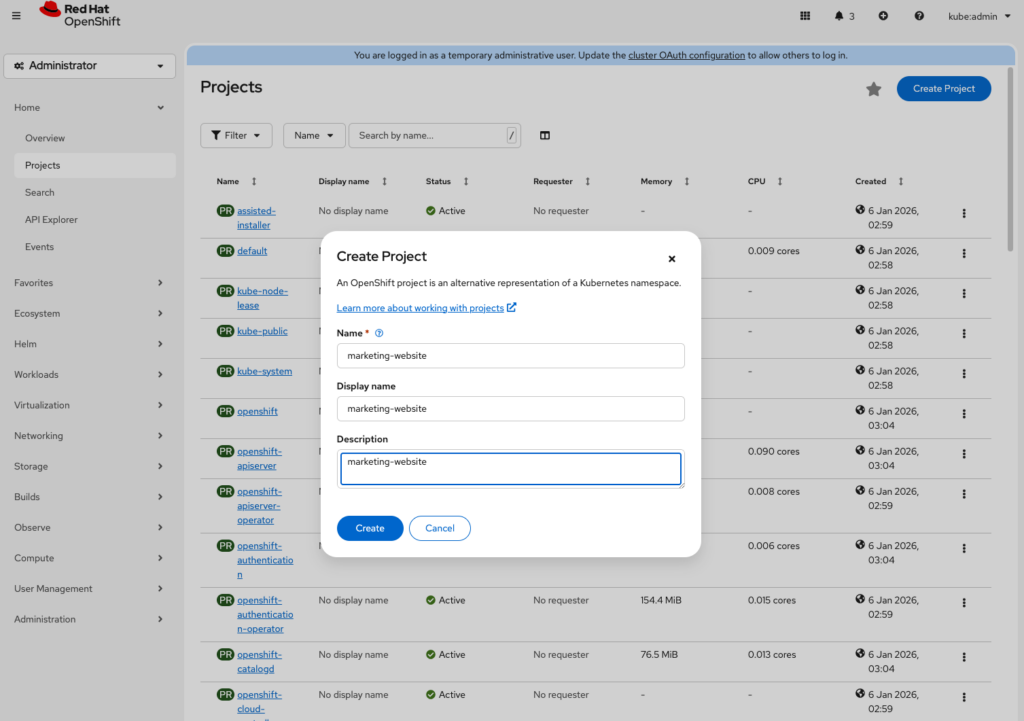
Create a new project
We are deploying a website for a fictitious marketing department. Lets start by creating the project namespace. Visit: Home > Projects
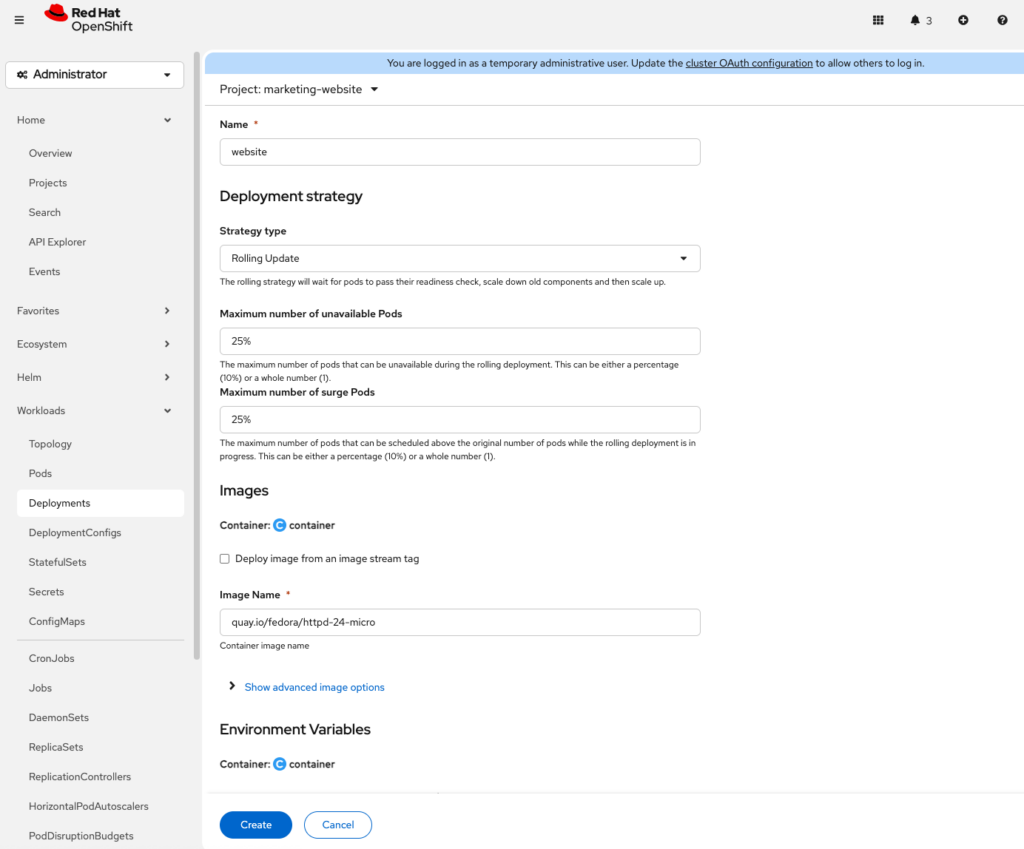
Create an Apache deployment.
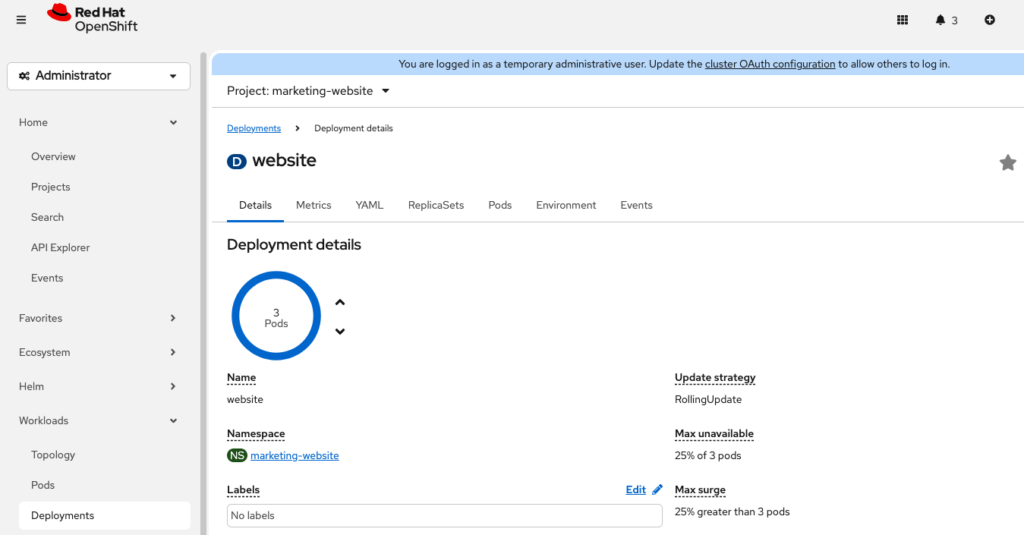
Openshift can pull images directly from external registries like Quay and Dockerhub. In this example we are using httpd image from Quay. We are creating 3 replicas (3 instances of apache for redundancy) just for kicks. Click Workloads > Deployments > Create Deployment
You can now verify if everything went according to plan by looking at the deployment status
Expose the container internally as a Service
At this point, the website containers are running internally, but for them to be reachable by other services on the same cluster, we have to expose them using a service. Click Networking > Services > Create Service
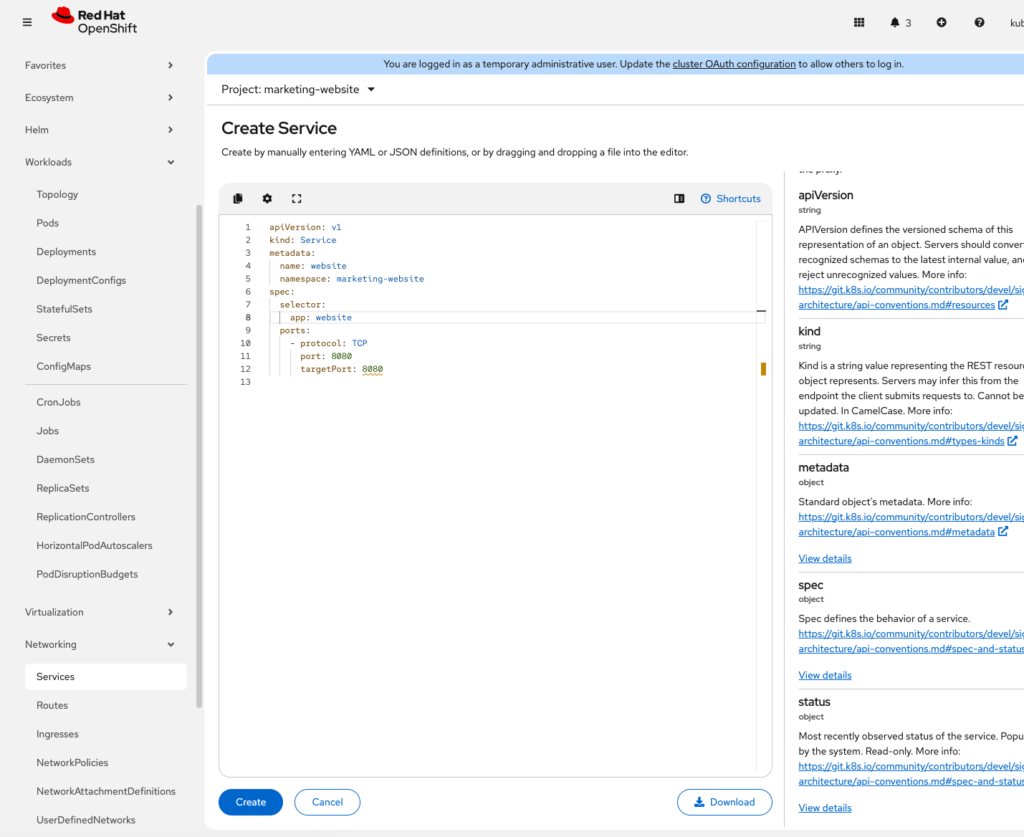
We can verify that the service is exposed internally.
% oc get svc
NAME      TYPE        CLUSTER-IP      EXTERNAL-IP   PORT(S)   AGE
website   ClusterIP   172.30.50.103   <none>        8080/TCP    7s
Now we are ready to expose the service externally for the whole wide world.
Expose the Service externally (Route)
Create an OpenShift Route to make Apache accessible from outside the cluster: Click Networking > Routers > Create Route.
Note: Am not defining hostname so that one is generated for me. Also am using TLS with edge termination
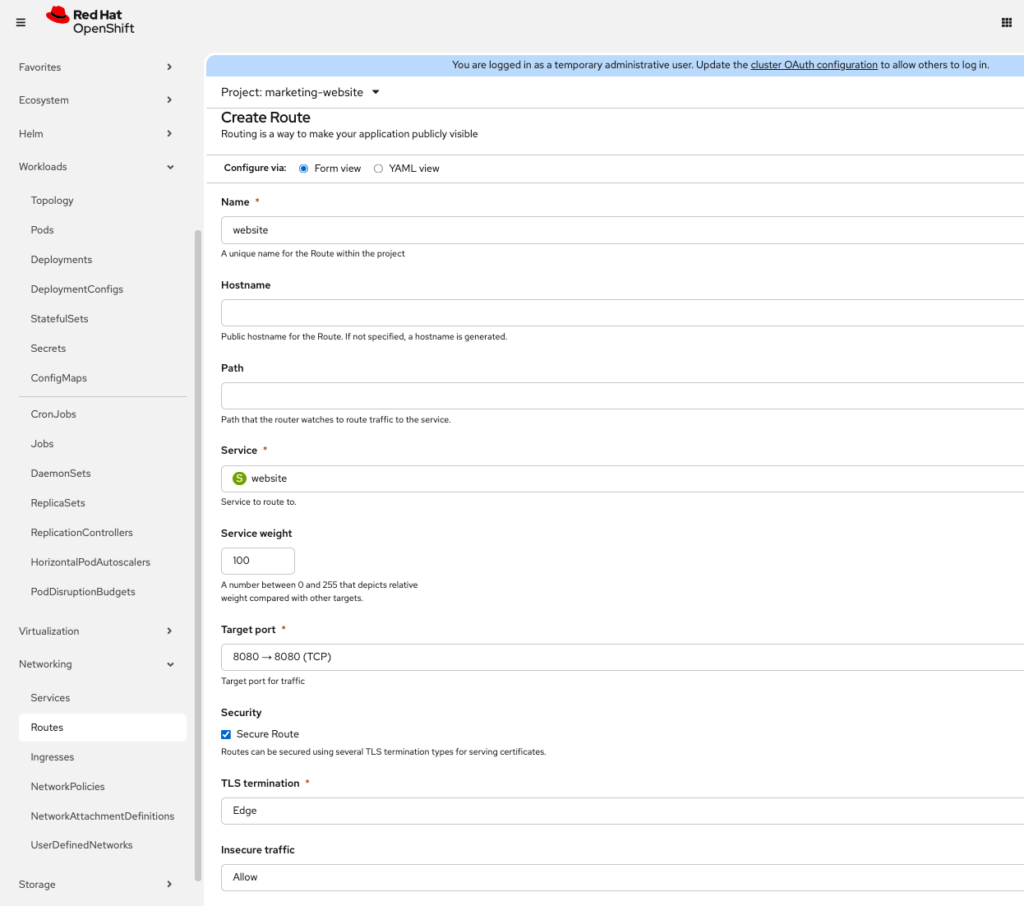
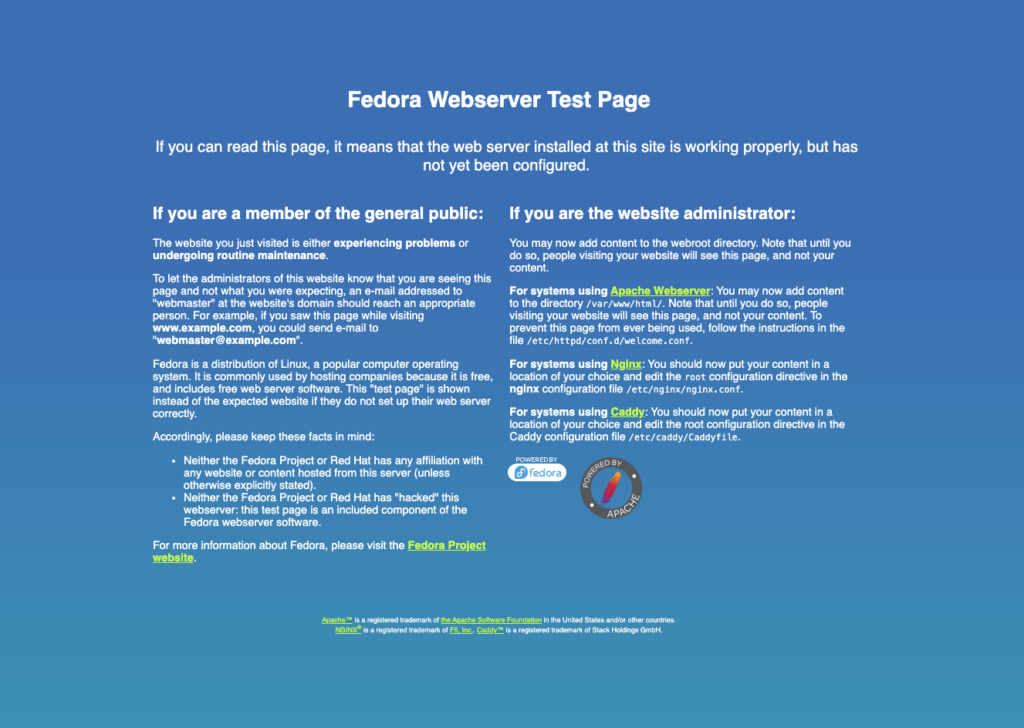
If you configured wildcard DNS as discussed earlier, your service should now be accessible by just entering (https://website-marketing-website.apps.prodcluster.demo.io) into a web browser. If not, then you would need to make a dns entry on your DNS to point this domain to your Openshift Cluster.
Cleanup
We can now safely clean up since this was a demo to verify that our shiny new Openshift installation is working as advertised.